|
|
|
|
Insights and perspectives on technology, AI, software development, and industry trends from the TrueSolvers team.
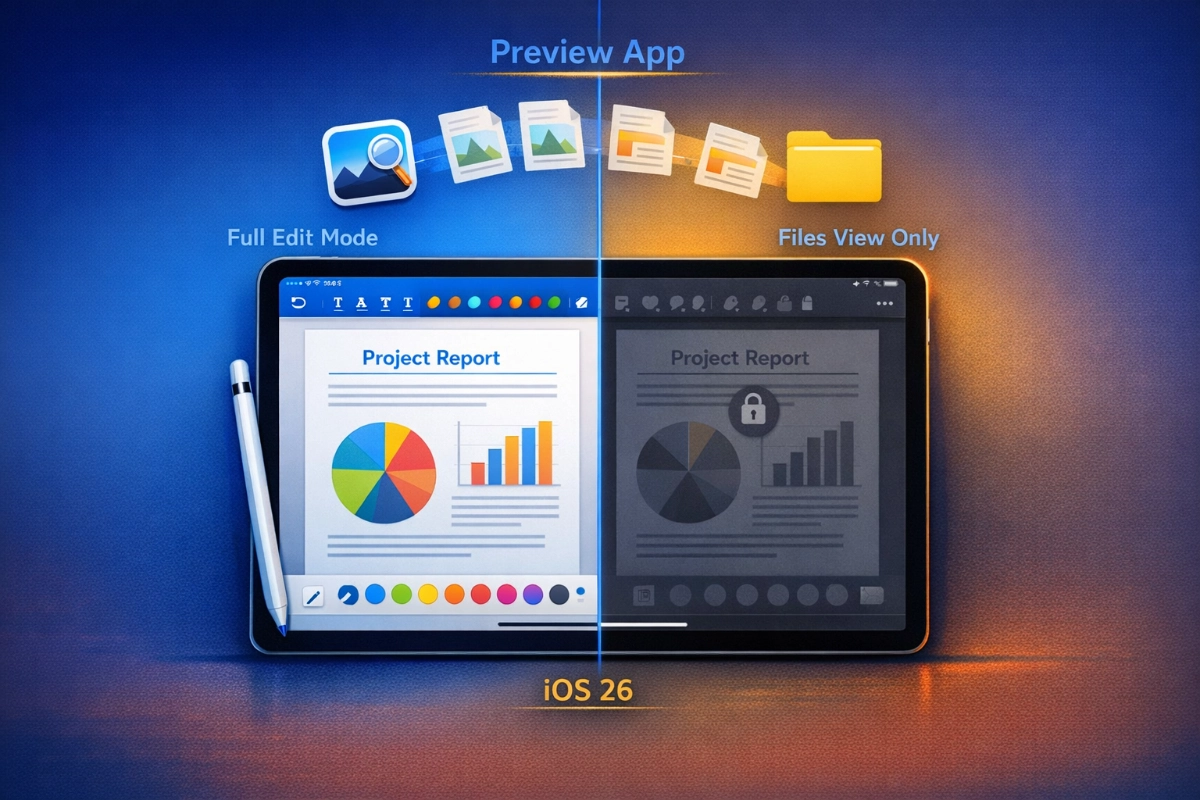
Before iOS 26, opening a PDF on your iPhone meant working within the Files app's constraints. You'd tap a document, view it in Files, maybe add a quick signature through Quick Look, then close it to open another file. This workflow forced sequential document handling: one file open at a time within the Files environment.
Preview changes this by existing as a separate application. When you open a PDF now, it launches in Preview rather than staying trapped in Files. This seemingly small architectural shift unlocks parallel workflows. You can maintain a document open in Preview while simultaneously using Files' Quick Look to preview another PDF. The app switcher becomes your document navigation tool, letting you jump between multiple files without closing and reopening repeatedly.
The app combines three previously scattered capabilities into one location. Document viewing moves from Files to a dedicated space. Markup annotation, which existed across various apps with inconsistent interfaces, consolidates under Preview's unified tools. Document scanning, previously handled by Notes or third-party apps, now lives directly within Preview. You scan with the camera, and the resulting PDF immediately opens in the editing environment without app switching.
According to Apple's official iOS 26 documentation, Preview allows users to view, edit, and share PDF documents and images, scan documents from within the app, use AutoFill to quickly fill out forms, and export PDFs and images as different file types or sizes. This feature set addresses the fragmentation that plagued mobile document workflows before iOS 26.
The separation of Preview from Files creates practical workflow improvements that weren't possible when everything lived in one app. Consider managing multiple PDFs during a home purchase, reviewing a contract, a disclosure statement, and an inspection report simultaneously. Previously, you'd open one in Files, memorize relevant details, close it, open the next document, compare mentally, then navigate back. Every comparison required file closure and reopening.
With Preview, you can maintain one document open in the Preview app while viewing another through Files' Quick Look feature. Switching between them happens through the standard iOS app switcher: a double-tap or swipe rather than navigating folder hierarchies. When you need to reference specific clauses across documents, you're moving between two active views instead of repeatedly opening and closing files.
The workflows this enables include:
Contract review: Keep the primary agreement open in Preview for annotation while checking appendices through Files Quick Look
Receipt management: Scan multiple receipts with Preview's camera, then immediately annotate them with notes about categories or reimbursement status
Form compilation: Fill out a complex PDF form in Preview while referencing supporting documents displayed in Files
Invoice comparison: Review vendor quotes side-by-side by maintaining one in Preview and switching to others through Quick Look
In examining of how Preview restructures document access patterns, the key improvement isn't just having two documents visible. It's eliminating the cognitive overhead of remembering where you were in Document A when you needed to check Document B. The app switcher maintains state, so returning to Preview shows your exact annotation position rather than forcing re-navigation.
Mac users have relied on Preview for decades as their primary PDF and image editor. The iOS 26 version brings several core capabilities from that desktop application to mobile, though with deliberate modifications for touch interfaces.
AutoFill represents the most significant time-saver for form-heavy workflows. According to Gadget Hacks, AutoFill reduces form-filling time from approximately 15 minutes to 2 minutes. When Preview detects fillable PDF fields, it automatically suggests information from your contacts. You tap a field, Preview offers your address or phone number, and you confirm. For contracts requiring signatures, Preview integrates saved digital signatures or lets you sign with Apple Pencil on iPad.
The app handles common form types efficiently: rental applications, medical intake forms, tax documents, and vendor agreements. You're no longer copying information from Contacts, pasting into PDF fields, then hunting for your signature image in Photos. Preview manages all three steps within one interface.
Markup capabilities mirror what Mac Preview offers, optimized for touch input. You can highlight text passages, add text boxes with typed commentary, draw shapes to emphasize sections, and insert arrows or lines to connect related information. The tool palette remains accessible without obscuring document content.
On iPad, Apple Pencil transforms these tools from adequate to precise. According to Apple's official documentation, Preview includes Apple Pencil Markup integration, enabling handwriting that feels natural rather than constrained. You can annotate blueprints with dimensional notes, mark up legal documents with handwritten edits, or sketch diagrams directly on PDF pages.
The built-in scanner uses your iPhone or iPad camera to capture multiple pages with automatic edge detection and perspective correction. Point your camera at a document, and Preview detects the paper boundaries, crops accurately, and corrects viewing angle distortion. The scan saves as a high-quality PDF ready for immediate annotation.
This eliminates the workflow disruption of using one app to scan, another to convert to PDF, and a third to edit. You scan, and you're already in the editing environment. For multi-page documents, Preview captures page after page in sequence, compiling them into a single PDF file.
Beyond PDFs, Preview handles image files with editing tools that cover most quick-adjustment needs. According to Gadget Hacks, Preview handles "80%" of quick editing needs without requiring dedicated photo editors. You can crop images to specific dimensions, rotate them in 90-degree increments, resize for different resolution requirements, and flip horizontally or vertically.
Background removal works through a single tap, isolating subjects against white backgrounds. This proves particularly useful for product photography or presentation materials where you need clean subject isolation without manual masking. The feature isn't replacing professional photo editing software, but it handles straightforward tasks without launching additional applications.
Export flexibility supports multiple formats: HEIC, JPEG, JPEG-2000, PDF, PNG, and TIFF, according to the App Store listing. You can adjust resolution and file size during export, optimizing for different use cases without external conversion tools.
The iOS version deliberately omits several features Mac Preview includes. According to iGeeksBlog, the mobile version skips PDF locking capability, color adjustment tools for brightness, contrast, and saturation, and in-app screenshot capture. These absences keep the mobile version focused on core document tasks rather than attempting feature parity with the desktop application.
PDF password protection represents the most notable omission. You can't encrypt sensitive documents with password requirements directly within Preview on iOS. If you need to lock a PDF before sharing, you'll still require a desktop computer or third-party iOS app. For users handling confidential contracts or financial documents, this limitation means Preview can't be their complete mobile document solution.
Color adjustments for images similarly require desktop Preview or dedicated photo editors. You can't tweak brightness curves, adjust contrast ratios, or modify saturation levels within iOS Preview. The app handles basic cropping and rotation but stops short of image enhancement. If you scan a document under poor lighting, you can't improve visibility within Preview. You'll need to rescan or use another app.
The trade-off makes sense when considering mobile use cases versus desktop workflows. Most mobile document tasks involve reviewing, annotating, signing, or quickly compiling files. Detailed image color correction or PDF encryption typically happen at desks with full-size displays and keyboards. Apple positioned Preview on iOS for on-the-go productivity rather than comprehensive document production.
However, the mobile version gains exclusive capabilities the Mac lacks. The built-in document scanner using device cameras doesn't exist on Mac Preview, which requires external scanner hardware. Apple Pencil handwriting support on iPad provides a natural annotation experience that mouse-based desktop input can't match. These mobile-specific advantages partially compensate for the missing desktop features.
iPadOS 26 launched simultaneously with iOS 26, introducing what Apple describes in its official announcement as an "entirely new powerful and intuitive windowing system." This architectural change dramatically expands Preview's utility on iPad beyond what iPhone offers.
The windowing system allows near-infinite window resizing and positioning, moving beyond previous Split View limitations. You're no longer restricted to two apps in predetermined side-by-side arrangements. According to AppleInsider, the system allows near-infinite window resizing with traffic light buttons for window management (red to close, green to expand, yellow to minimize), mirroring Mac conventions while remaining touch-optimized.
For Preview specifically, this means you can design persistent workspace layouts tailored to document workflows. You might maintain Preview in a large window occupying the left two-thirds of your screen while keeping Files in a narrow vertical window on the right side. This layout stays intact across work sessions, so each time you open these apps, they return to your configured positions.
The system supports essentially unlimited windows in a single workspace, according to Slatepad's analysis. Higher-end iPads with sufficient RAM can manage up to twelve active windows before memory constraints become noticeable. For document-heavy tasks, you could maintain Preview with three different PDFs open in separate windows, plus Files for navigation, plus Pages for note-taking, all simultaneously visible and accessible.
Setting up an effective Preview workflow on iPad involves these steps:
Open Preview and Files simultaneously by dragging one app from the dock while another is active
Resize Preview's window to occupy your primary working area, typically 60-70% of screen width
Position Files in a narrower window on the opposite side for document browsing
Create additional Preview windows by opening new PDFs from Files; each launches in a separate window
Arrange windows by dragging title bars to your preferred positions
Save this workspace configuration by leaving apps open; iPadOS preserves your layout
After looking into how the windowing system amplifies Preview's document capabilities, the critical advantage isn't just seeing multiple files simultaneously. It's maintaining persistent access to your document navigation structure. Files remains visible as your folder browser while Preview acts as your viewing and editing canvas. You're working in a desktop-style environment where tools and content occupy dedicated screen regions rather than fighting for the same space.
The menu bar introduced in iPadOS 26 provides access to Preview's commands via a swipe from the top edge. You can invoke markup tools, access export options, or manage pages without obscuring document content with floating toolbars. This interface design keeps the focus on your documents while making functionality accessible through deliberate gestures.
Preview pre-installs with iOS 26; you don't download it separately, though users should ensure they're running the latest iOS 26.2 update for security. It appears on your home screen after updating to iOS 26 or iPadOS 26, requiring no App Store search. The app works across all devices supporting iOS 26, starting from iPhone 11 onwards.
The default behavior changes how PDFs open. When you tap a PDF in Files, it now launches in Preview rather than displaying within Files. If you prefer the previous behavior where documents stayed within Files, you can delete Preview, and iOS reverts to the old method. Apple designed this flexibility so users who don't want Preview's workflow changes aren't forced to adopt them.
For most users, the new workflow becomes natural quickly. You browse documents in Files, tap one to open in Preview, annotate or review it, then switch back to Files through the app switcher when you need the next document. The Files Quick Look feature still exists for rapid previews without launching Preview. Press and hold a file, tap Quick Look, and view it inline within Files.
Performance considerations exist for heavy document users. The app requires at least 4GB of RAM for smooth handling of large PDFs and multi-page documents. Some users report lag when handwriting extensively across multiple pages with Apple Pencil, with files growing to 66MB and causing device overheating during heavy note-taking sessions. Preview appears optimized for document annotation rather than extensive digital handwriting, so if you're planning to use iPad as a digital notebook, dedicated note-taking apps might serve you better.
The introduction of Preview aligns with Apple's broader productivity push in iOS 26. Enhanced multitasking on iPad, improved Files app organization, and the system-wide Liquid Glass design all point toward positioning iPhone and iPad as genuine alternatives to laptops for document-dependent work. Apple isn't alone in rethinking mobile home screen control - Android 17 Beta 1 signals Google is moving in a similar direction on Pixel, giving users control over home screen elements that were previously locked down. Preview serves as infrastructure for that vision, providing the document editing foundation that mobile professionals need.
For users transitioning from Mac to iPad for document work, Preview makes that shift more feasible. You're working with familiar tools in a familiar interface, adapted thoughtfully for touch input and mobile contexts. The workflow won't replicate desktop productivity entirely (the missing PDF encryption and color adjustment tools ensure that), but for reviewing contracts on the go, signing forms remotely, or managing receipts while traveling, Preview delivers capabilities that previously required returning to your desk.
Apple released iOS 26 on September 15, 2025, introducing Preview as a dedicated document management application for iPhone and iPad. This marks the first time iPhone users can access Mac-quality PDF and image editing without relying on the Files app's limited inline tools. Preview consolidates document viewing, annotation, and scanning into a single workspace that transforms how you handle contracts, forms, and visual assets on mobile devices.
Boost your workflow with our browser-based tools
Share your expertise with our growing community. We accept in-depth articles on Tech, AI, and Dev.
Get StartedFinished reading? Continue your journey in Tech with these hand-picked guides and tutorials.