Finished reading? Continue your journey in Tech with these hand-picked guides and tutorials.
Boost your workflow with our browser-based tools
Share your expertise with our readers. TrueSolvers accepts in-depth, independently researched articles on technology, AI, and software development from qualified contributors.
TrueSolvers is an independent technology publisher with a professional editorial team. Every article is independently researched, sourced from primary documentation, and cross-checked before publication.
Most MacBook slowdowns trace to two silent, compounding causes that accumulate over years of normal use. Addressing login item bloat and storage scarcity first recovers the majority of available performance. This guide shows you which diagnostic steps confirm your specific bottleneck and which fixes to prioritize before spending time on anything else.
Every guide on speeding up a Mac presents its tips as equals. Login item bloat and storage scarcity produce measurably different severity of slowdown than turning off the Genie Effect, and treating them as equal items on a checklist means most users spend time on low-impact steps while the high-impact causes continue operating in the background.
The mechanism behind login item bloat is straightforward. Every application that secures a spot in the startup sequence takes a slice of RAM and processor time from the first moment the Mac powers on. That load never relents. A Mac that launches with eight or ten background agents is perpetually working against itself before a single browser tab opens. Many applications add themselves to this list without any obvious prompt during installation, meaning the list grows gradually without the user's awareness.
Storage pressure operates through a different but equally persistent mechanism. macOS depends on free disk space to manage virtual memory, which is the system's method of using the SSD as overflow when physical RAM runs short. Macworld documents that at least 10% of total storage must remain free for this to function properly, and when the number of system swap files exceeds approximately five, performance begins to degrade measurably. Apple's macOS User Guide documents storage scarcity as the first cause to investigate when a Mac runs slowly, ahead of all other causes. Intego's analysis puts the recommended free space threshold at 10 to 15 percent of total capacity.
We cannot promise a specific performance recovery percentage, as results depend on how heavily bloated a particular machine has become over time. A MacBook that has accumulated fifteen login items and is sitting at 5% free storage on a 256GB drive is in a fundamentally different state than one that is moderately loaded.
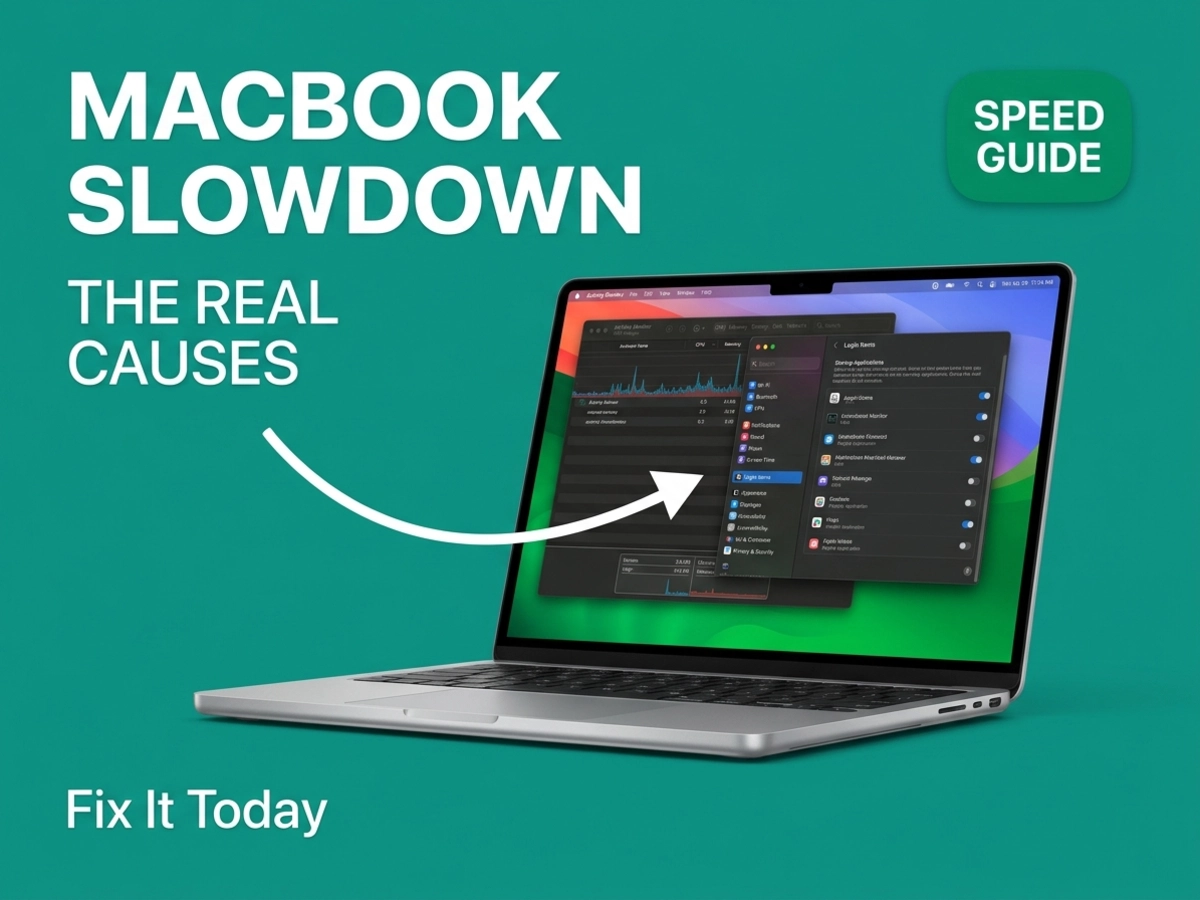
To address login items, open System Settings, navigate to General, and select Login Items and Extensions. The "Open at Login" section displays every application granted startup permission. Remove anything that does not require immediate availability at boot. The "Allow in the Background" list below it shows applications running background tasks; disabling these selectively can reduce persistent CPU and RAM consumption, though some affect app behavior when re-enabled.
For storage, System Settings > General > Storage provides a categorical breakdown. Start with Applications (sort by size, remove anything unused), then move to Documents. The approach in the next section will cover the most frequently overlooked category in that list.
Before working through any additional optimization steps, running a quick check in Activity Monitor eliminates guesswork about where the remaining slowness originates. The tool ships with every Mac and lives in Applications > Utilities.
Open Activity Monitor and click the Memory tab. Ignore the individual process list for a moment and look at the bottom of the window. The Memory Pressure graph is the diagnostic reading that matters. Green indicates RAM is available and the system is operating normally. Yellow signals that pressure is building and the system is beginning to work harder to manage memory allocation. Red means the Mac is actively reading from and writing to the SSD as a substitute for RAM, a process that is substantially slower than using physical memory.
We note that Activity Monitor can look overwhelming at first glance; the Memory Pressure graph at the bottom of the Memory tab is the single readout that matters for this diagnosis.
A Mac displaying persistent red Memory Pressure is fundamentally RAM-constrained. Deleting files will not solve that problem in any lasting way. The correct response is to close applications that are consuming memory without active use. Switch to the CPU tab to identify processes with consistently high percentages; these are candidates for quitting or uninstalling.
One source of memory consumption that surprises many users is the desktop itself. Every file placed on the Mac's desktop is held in RAM as a rendered window with a preview image, so the system can display it immediately when you switch to the desktop view or use Quick Look. A desktop with fifty files, folders, and screenshots is consuming memory continuously, regardless of whether you are actively looking at it. Moving those files into organized folders within the Documents directory removes the RAM overhead entirely.
FileVault encryption also adds processing overhead to every read and write operation on the drive. If FileVault is enabled and the Mac is struggling under load, turning it off through System Settings > Privacy and Security > FileVault is worth testing to determine whether the decryption cycle is contributing to the slowdown.
With the baseline diagnostic complete, the storage cleanup process becomes more targeted. Apple's storage management documentation confirms that macOS automatically clears certain caches and logs when storage pressure builds, meaning the system handles routine automatic maintenance on its own. The manual work required is finding the categories of files that macOS cannot remove without user authorization.
The System Settings > General > Storage screen provides the starting point. The Applications category is sorted by size by default, making it straightforward to identify large programs that have not been opened in months. The Documents category contains a More Info button that reveals subcategories, including unsupported apps and large files.
The most frequently overlooked storage drain on older MacBooks is old iPhone and iPad backups. When a device was backed up to the Mac through iTunes or Finder rather than iCloud, those backups accumulate in a folder most users never see. Our recommendation is to check the ~/Library/Application Support/MobileSync/Backup/ folder before spending time on smaller cleanup tasks. To navigate there, open Finder, select Go from the menu bar, choose Go to Folder, and paste that path. Full device backups can occupy ten to thirty gigabytes each, and multiple old backups compound quickly on a 128GB or 256GB drive.
For Photos, the iCloud Photos "Optimise Mac Storage" setting in the Photos app under Settings > iCloud is worth enabling if it is not already active. With this on, the Mac retains compressed previews locally and retrieves full-resolution versions on demand from iCloud, rather than maintaining full copies of the entire library on the internal drive.
The Downloads folder is a reliable source of recoverable space on any machine that has been in use for more than a year. Disk images, installer packages, and large downloaded files accumulate there without any automatic cleanup. Sort by size to address the largest items first.
Cache files exist to speed up access to data the system uses frequently. A browser cache stores page resources so that revisited sites load faster. Application caches hold data that would otherwise need to be fetched or recalculated on every launch. When a cache is functioning correctly, it makes the Mac faster. Deleting it forces the system to rebuild that data from scratch.
We should be precise here: the benefit of clearing caches is not guaranteed on a healthy system.
Apple's own support communities and macOS engineers have documented that routinely deleting caches actually slows a Mac temporarily while those caches rebuild. The performance benefit only materializes when a specific cache has become corrupt.
The distinction between routine cache deletion and targeted cache intervention matters more than most guides acknowledge. Clearing cache on a MacBook Air triggers a storage-hungry rebuild that can persist for days, and understanding when that cost is worth paying versus when it makes a slow Mac slower is the question most optimization checklists skip entirely.
The targeted approach is a Safe Mode boot. The Eclectic Light Company's research into macOS internals documents that Safe Mode specifically clears the font cache and the kernel cache, which are the system-level caches most likely to develop corruption over time. It also runs a tool called CacheDelete that recalculates purgeable storage. It does not purge all user caches. Safe Mode is surgical, not a general clean sweep.
To boot into Safe Mode on an Intel Mac, hold Shift at startup. On an M-series Mac, press and hold the power button until startup options appear, select the startup disk, then hold Shift and click Continue in Safe Mode. Apple's confirmed guidance is that video capture, graphics performance, file sharing, Wi-Fi, and audio devices may not function normally during a Safe Mode session, so it is intended as a diagnostic and maintenance step, not a usable working mode.
The diagnostic value of Safe Mode goes beyond cache clearing. If a performance problem disappears entirely after a Safe Mode boot but returns after restarting normally, the cause is a third-party login item, startup extension, or font. That points directly back to the Login Items list covered in the first section.
Some optimizations require only a few minutes to implement and deliver real if secondary benefit. We suggest addressing macOS software updates before the visual effects toggle; a bug fix in a recent update can deliver more improvement than any cosmetic setting change.
Software updates are available through System Settings > General > Software Update. macOS point releases routinely include performance fixes that address specific processes or memory management regressions introduced in earlier builds. Staying current removes the possibility that a known performance bug is contributing to the slowdown.
Browser extensions warrant attention because for most MacBook users, the browser is where the majority of computing time is spent. An extension that is enabled but rarely used is consuming resources during every browsing session. Opening the Extensions manager in Safari, Chrome, or Firefox and disabling any extension that is not used actively at least weekly produces a measurable reduction in browser CPU and RAM consumption.
iCloud sync running in the background creates a category of slowness that users often misattribute to general system age. When iCloud is actively syncing, the Mac's processor, storage I/O, and network connection can be simultaneously occupied. This effect is more pronounced when iCloud Desktop and Documents sync is enabled, because any file saved to the desktop or Documents folder triggers an immediate upload. Disabling iCloud Drive sync for the Desktop and Documents folders through System Settings > [Your Name] > iCloud > iCloud Drive reduces this persistent background demand.
The visual effects toggle is a minor but real intervention. macOS animations, including the window minimization effect, menu transparency, and motion effects throughout the interface, consume graphics and processor resources. On an Intel MacBook with modest integrated graphics running a heavy workload, these represent a non-trivial overhead. Accessibility > Display > Reduce Motion and Reduce Transparency are the two settings to enable. Switching the Minimize windows effect from Genie to Scale in System Settings > Desktop and Dock also reduces GPU demand during window operations.
A regular restart habit completes this tier. A Mac that has been sleeping rather than fully powering off for weeks has accumulated swap files, background process memory, and pending system maintenance tasks. A full shutdown and restart clears all of these simultaneously. The Mac's SSD makes restarts fast enough that this is no longer a meaningful inconvenience.
Intel MacBooks include two hardware controllers that have no equivalent in their M-series successors. The System Management Controller, or SMC, governs fan speed, thermal management, battery charging, and power delivery. NVRAM stores settings including the startup disk selection, display resolution, time zone, and audio configuration. When either becomes corrupted, specific symptoms follow: fans running at full speed with low CPU load, the Mac failing to charge, unexpected shutdowns, or slow performance that Activity Monitor does not explain through any obvious process.
On Intel Macs, the SMC reset requires holding a specific key combination at startup. NVRAM has its own reset sequence. Both are documented in Apple's support materials and remain valid troubleshooting steps for Intel hardware when the symptoms match.
We note that most optimization guides in circulation were written before 2021 and do not distinguish between chip architectures.
Apple Silicon completely absorbed the SMC and NVRAM into the M chip itself. Every manual reset technique for those components that circulates in older guides is architecturally inapplicable to any MacBook sold after late 2020.
Macworld's reset documentation confirms that M-series Macs carry no discrete SMC or NVRAM; the M processor handles all of those functions natively. For an M-series Mac exhibiting the symptoms that would warrant an SMC or NVRAM reset on Intel hardware, the equivalent step is a complete shutdown followed by a wait of at least 30 seconds before restarting. A standard restart is not equivalent; the full power-off cycle is what triggers the reset of those integrated functions.
This architectural distinction matters practically. A user following a pre-2021 guide and pressing the SMC reset key combination on an M-series MacBook Pro is performing a step that has no effect. The machine is not broken; the instructions simply do not apply.
For MacBooks in either category, working through the steps above in order handles the vast majority of performance problems that develop over years of normal use. The remaining cases, where performance stays unacceptable after all software interventions, typically involve storage that is physically near the end of its rated life, a model too old to run the current macOS version efficiently, or a hardware configuration that was undersized for the actual workload from the day of purchase. At that point, the question shifts from optimization to replacement, and the steps above are most useful as evidence for whether the machine is worth further investment.