Finished reading? Continue your journey in Tech with these hand-picked guides and tutorials.
Boost your workflow with our browser-based tools
Share your expertise with our readers. TrueSolvers accepts in-depth, independently researched articles on technology, AI, and software development from qualified contributors.
TrueSolvers is an independent technology publisher with a professional editorial team. Every article is independently researched, sourced from primary documentation, and cross-checked before publication.
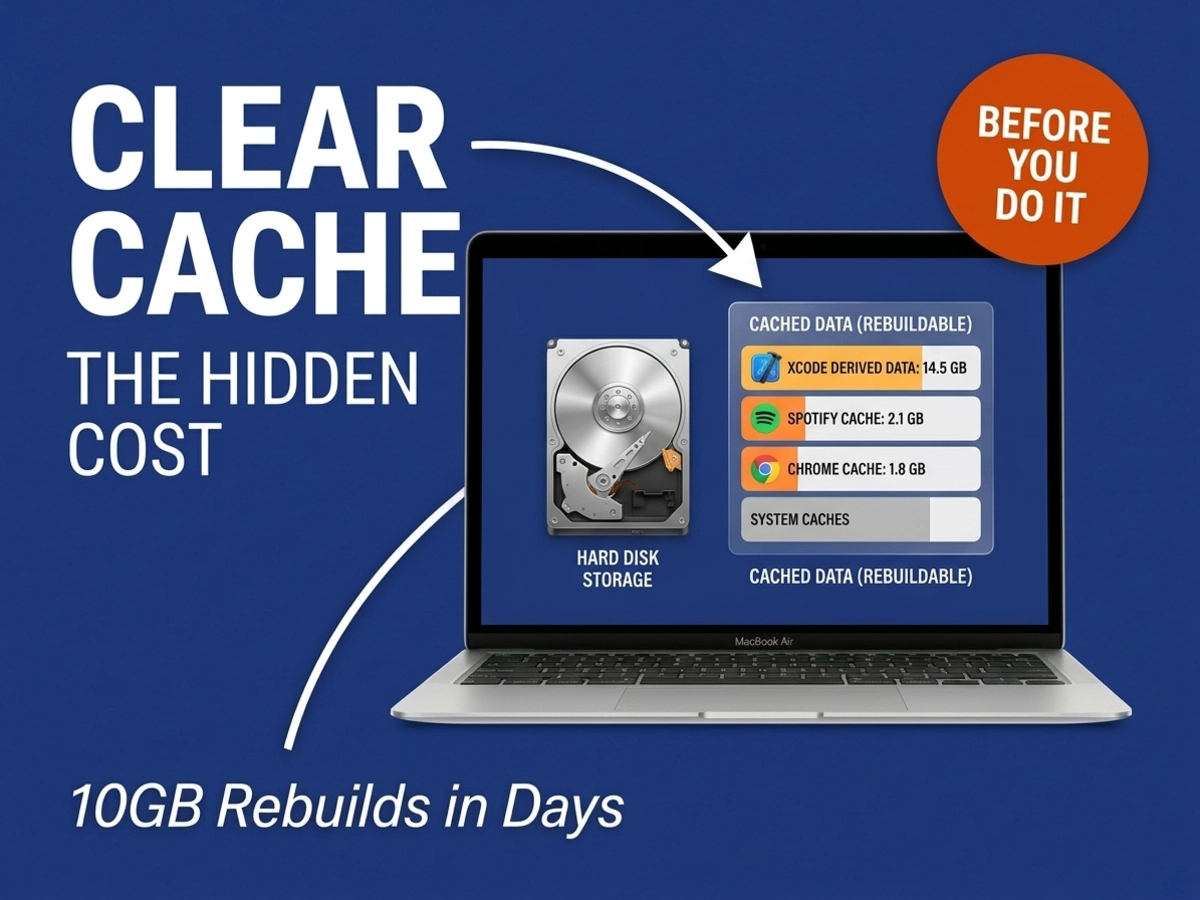
Clearing cache on your MacBook Air triggers a storage-hungry rebuild that can consume 10+ gigabytes within days. Most guides skip this consequence entirely, leaving users frustrated when their "faster" Mac slows down during cache reconstruction. Here's when clearing cache actually helps and when it makes things worse.
If you cleared cache on your MacBook Air expecting a meaningful, lasting reduction in storage use, and watched those gigabytes creep back within days, the guides you followed left out the most important part. Cache doesn't stay deleted. MacBook Air runs three categories of cached data: browser cache storing page elements for faster repeat visits, user and application cache holding temporary files that speed up app launches, and system cache managing core macOS functions including graphics rendering and file indexing. Most guides treat these equally, instruct you to delete all three, and stop there. What happens next is the part that matters.
The first consequence is mechanical and unavoidable. Cached files start rebuilding the moment you use your Mac after clearing them. Open a browser tab and the browser begins reconstructing its cache. Launch an app and it immediately starts creating the temporary files it needs to run efficiently. The rebuild isn't a one-time event; it's a continuous process that mirrors your usage patterns exactly.
The second consequence is a common misunderstanding about permanence. Macworld found that deleting cache data won't necessarily free up storage, because the Mac recreates many of these files automatically. This isn't a flaw; it's how macOS is designed to function. Apps can't run efficiently without their cached data, so they restore it. The storage benefit is always temporary.
The speed of that rebuild depends on intensity of use. Nektony's analysis found that browser caches alone can grow beyond 2 GB if left unchecked, and some applications generate hundreds of megabytes of cache data every week. For a MacBook Air user with 256 GB of total storage, that weekly accumulation rate makes the "10+ gigabytes within days" scenario realistic for anyone running browsers and creative tools as part of their normal workload.
MacPaw's documentation confirms that macOS never removes cached files on its own schedule the system does not automatically clear these files at any point. Users who expect the Mac to handle this housekeeping on their behalf will simply watch storage fill back up with no intervention from the OS. This assumption is one of the most consistent sources of confusion among users who have already tried clearing cache and found the results disappointing. How quickly cache returns varies considerably, and no single timeline applies to every MacBook Air user, someone running browsers and design tools heavily will see storage climb back far faster than someone using the machine mainly for documents and email.
When MacBook Air users look at their storage breakdown and see an oversized "System Data" category, cache is the natural assumption. It's the first thing guides tell you to clear. But for many users, deleting the contents of ~/Library/Caches produces almost no visible change in the storage bar. The reason is that the problem was never cache.
What we consistently found is that the dominant contributors to large "System Data" readings are frequently unrelated to cache entirely. As Onerep's technical team documented, Spotlight index files (labeled V100), Time Machine local snapshots, and hidden iCloud files are among the most common sources of unexpected storage consumption and clearing the cache the usual way does nothing to these files.
Time Machine snapshots are particularly common offenders on MacBook Air. When a Time Machine backup drive isn't connected, macOS stores local snapshots of changed files to include in the next backup run. These snapshots live in System Data, can accumulate to tens of gigabytes, and are entirely invisible to cache-clearing tools. The snapshots do eventually clear automatically when a backup runs successfully, but a MacBook Air user who infrequently connects a backup drive may be sitting on months of accumulated snapshots.
Spotlight index files can also grow abnormally, especially after major macOS updates. When the Spotlight index becomes oversized or corrupt, rebuilding it through Disk Utility or Terminal addresses the storage bloat in a way that cache clearing cannot. Neither the index rebuild nor the snapshot removal falls under anything a cache-clearing guide would instruct you to do.
The practical upshot: if you clear your cache and your storage bar doesn't move, don't keep clearing cache. The problem is almost certainly elsewhere in System Data, and the solution requires a different set of tools.
The strongest case for routine, periodic cache clearing consistently comes from vendors with a commercial stake in the practice — companies that sell Mac cleaning software. Apple's official documentation does not recommend it, and experienced Mac users in Apple Community discussions, some with 30-plus years of daily Mac use, state plainly that there is no reason to periodically clean caches and that preventative clearing merely slows a Mac until the caches rebuild. These are users with no product to sell.
That doesn't mean cache clearing is never appropriate. Four specific situations genuinely call for it.
When available storage drops below 10 percent of total capacity, macOS performance degrades regardless of what else you do. In this scenario, clearing browser and user/app cache provides legitimate emergency relief. It's temporary, but that may be enough time to identify and remove a more permanent storage problem. Setapp recommends clearing cache primarily for two reasons: troubleshooting a specific problem or recovering space when storage is critically low. Both are reactive, not routine.
Corrupted cache can cause individual apps to freeze on launch, produce error messages, or display content that looks wrong. When an app consistently misbehaves and a restart doesn't fix it, its cached data is a reasonable suspect. The key distinction here is precision: target the specific app's folder inside ~/Library/Caches, not the entire directory. Macworld positions cache clearing as a last resort, appropriate only after restarting the problematic app and reinstalling it haven't resolved the issue. Experienced Mac users note that genuinely corrupted caches are caused by something interfering with normal OS behavior clearing the cache addresses the symptom but not the underlying cause.
When a website continues showing outdated content after a confirmed update, the browser is serving a cached version of the page. This is one of the most useful and genuinely benign reasons to clear browser cache. The fix is targeted, the rebuild is automatic during normal browsing, and the inconvenience is limited to a brief slowdown on the first visit back to affected sites.
If someone else used your MacBook Air and you want to remove their browsing session data, browser cache clearing is an appropriate tool. Cookies, site data, and session information stored in browser cache can reveal browsing history clearing it is a reasonable privacy measure, not a maintenance task.
Before deleting any files manually, restart the Mac. This is the step that most users skip, and it handles more of the cache problem than most guides acknowledge.
A restart clears a substantial portion of the temporary cache data that accumulates during a work session. In-memory data, app session caches, and many temporary system files are flushed as part of the normal shutdown and startup cycle. The key difference is that a restart doesn't touch persistent cached files that apps depend on for smooth operation so there's nothing to rebuild from scratch, and no performance dip afterward.
For situations where a restart isn't enough, Safe Mode provides a more targeted clearing step. Apple's official documentation confirms that booting in Safe Mode clears certain system caches, which the system then recreates automatically as needed. Safe Mode also runs a startup disk check and loads only essential system processes, which makes it useful for diagnosing whether a performance issue stems from third-party software. This is the cache-clearing method Apple actually endorses, not manual deletion of cache folders.
Safe Mode is the correct tool for system-level cache problems. It clears what needs clearing, skips what needs to remain, and rebuilds everything automatically without risking the deletion of files the OS depends on. Using it as the first response to a genuine performance problem eliminates most of the risk associated with manual system cache deletion.
Safe Mode is not designed for routine use either; it's slower by design, since it skips non-essential processes. Use it when a performance issue persists after a normal restart, not as a regular maintenance step. Regular restarts, combined with the targeted cache clearing covered below, are enough to keep even an older MacBook Air running well a point worth keeping in mind if you've been wondering whether your current machine still has life left. The M1 MacBook Air in particular remains a compelling performer even five years after its release, and proper maintenance is a large part of why.
The order in which you clear cache matters as much as whether you clear it at all.
Working from lowest risk to highest risk prevents most of the system instability issues that follow poorly targeted cache deletion. Before clearing any cache, quit all open applications. Deleting cache data while an app is running can cause it to freeze, lose work, or corrupt its own files during the rebuild attempt. Back up your Mac before touching system or user cache this is non-negotiable if you're clearing anything beyond browser data.
Browser cache is the appropriate starting point for anyone concerned about storage, performance, or privacy. It rebuilds automatically through normal browsing, carries no system stability risk, and grows fastest among the three cache categories.
Safari: Open Safari, go to Safari in the menu bar, and select Settings. Click the Privacy tab and choose Manage Website Data to remove all or specific site data. Alternatively, if you have the Develop menu enabled, select Develop, then Empty Caches this clears the cache without removing cookies or browsing history.
Chrome: Open Chrome, go to Chrome, then Settings. Select Privacy and Security, then Clear Browsing Data. Choose Cached Images and Files and set your time range.
Firefox: Open Firefox, go to Firefox, then Settings. Select Privacy and Security, and under Cookies and Site Data, click Clear Data.
User application cache lives in ~/Library/Caches. To reach it, open Finder, press Shift+Command+G, type ~/Library/Caches, and press Enter. This folder contains subfolders organized by app name.
The most impactful targets here are the apps you use most heavily and any apps you no longer use but haven't fully uninstalled. Adobe creative applications, video editors, and development tools like Xcode generate cache at a far higher rate than standard productivity apps. Removing the entire contents of a single app's subfolder is safer than selecting files individually. Never delete the subfolder itself, only its contents macOS and apps expect these folder structures to exist.
Treat any folder whose name you don't recognize with caution. Deleting cache for an app you actively use will trigger a rebuild slowdown on its next launch. Deleting cache for a system process you don't recognize can cause instability.
Do not manually delete files from /Library/Caches or /System/Library/Caches. These directories contain data essential to graphics rendering, kernel communication, and file indexing. On Apple Silicon MacBook Air models, the /System directory is sealed by macOS and cannot be modified through Finder regardless any guide instructing you to delete files there on an M-series Mac is working from outdated Intel-era instructions.
For system cache problems, use Safe Mode. Restart the Mac, hold the power button until startup options appear, select your startup disk, then hold Shift and click Continue in Safe Mode. Allow the Mac to complete its startup, verify that the performance problem has resolved, then restart normally. The system recreates what it cleared automatically.
After any cache deletion, restart the MacBook Air before evaluating results. This allows macOS to establish new cache structures cleanly rather than patching them over deleted files mid-session.
How often should I clear cache on MacBook Air?
There's no recommended schedule. The Apple Community's most experienced contributors explicitly state that preventative cache clearing just slows the Mac until caches rebuild. Clear cache when you have a specific reason low storage, a misbehaving app, stale browser content, or privacy after shared use. Not on a weekly or monthly calendar.
Will clearing cache make my MacBook Air faster?
It might, temporarily, if the slowdown is caused by corrupted cached data. In most other cases, the performance effect is neutral to mildly negative: apps run slightly slower during the rebuild phase, then return to normal. Unless you're addressing a specific cache-related problem, the expected outcome is brief inconvenience followed by no net change.
Why didn't clearing cache shrink my storage bar?
Almost certainly because the storage being consumed isn't cache. Time Machine local snapshots and Spotlight index files are far more common culprits for large "System Data" readings. Clearing ~/Library/Caches does not affect either of these. Check whether Time Machine is configured and whether your backup drive has been connected recently. If snapshots are the issue, the Disk Utility or Terminal commands for deleting snapshots will address what cache clearing cannot.
Can I clear Safari cache without affecting other apps?
Yes, and this is the recommended starting point. Safari cache clearing is isolated to browser data it has no effect on user or system cache, and no effect on any other application. It's the lowest-risk and highest-frequency operation in any cache maintenance scenario.
What happens if I accidentally delete a system cache file?
Minor system cache deletions are usually self-correcting macOS recreates the file during its next operation. Larger deletions from /Library/Caches can cause more significant issues: crashes, display problems, or failed system operations that persist until the cache rebuilds fully or a Safe Mode boot completes the reconstruction. The exact recovery timeline varies by what was deleted. This is the core reason to treat system cache directories as off-limits for manual deletion and rely on Safe Mode when system cache actually needs clearing.