Finished reading? Continue your journey in Tech with these hand-picked guides and tutorials.
Share your expertise with our readers. TrueSolvers accepts in-depth, independently researched articles on technology, AI, and software development from qualified contributors.
TrueSolvers is an independent technology publisher with a professional editorial team. Every article is independently researched, sourced from primary documentation, and cross-checked before publication.
A slow Windows PC doesn't always mean more programs to uninstall. Most cleanup guides point you at Task Manager's Startup tab, walk you through disabling a few apps, and call it done — but that tab only shows a fraction of what Windows actually runs. This article explains the deeper autostart layer standard advice misses, the mechanism that turns moderate background load into severe-feeling slowdowns, and the interventions that measurably recover performance.
The frustration is specific: you've uninstalled unused software, you've gone through Task Manager's Startup list, you've run Disk Cleanup, and your machine still feels like it's working against you. The standard advice hasn't lied to you — those steps do help — but they address a surface layer while leaving the underlying structure intact.
A clean Windows 11 installation runs roughly 100–120 processes at idle. On a bloated system, that number climbs past 150 before you've opened a single application. According to Atera's analysis of Windows 11 performance data, bloated systems show idle process counts 30–40% higher than clean builds. What drives that gap isn't just the apps you know about — it's the background infrastructure those apps leave behind when they install, when they update, and sometimes even after you uninstall them.
The temptation at this point is to attribute the problem to aging hardware and reach for new components. Modern NVMe storage has made file system fragmentation largely irrelevant as a bottleneck; the gap between a two-year-old SSD and a brand-new one barely registers in everyday responsiveness. We have not found evidence that hardware investment alone resolves the slowdowns caused by accumulated background services — the process ceiling is a software problem, and it requires a software solution. Hardware upgrades raise your absolute ceiling; software maintenance determines how close to that ceiling you actually operate.
The distinction matters practically. If your machine has never been through comprehensive startup and service management, adding RAM will still leave the background process count intact. The new memory simply gives those processes more room to run. Addressing the process ecosystem first gives you an accurate picture of what hardware, if anything, your workload actually requires.
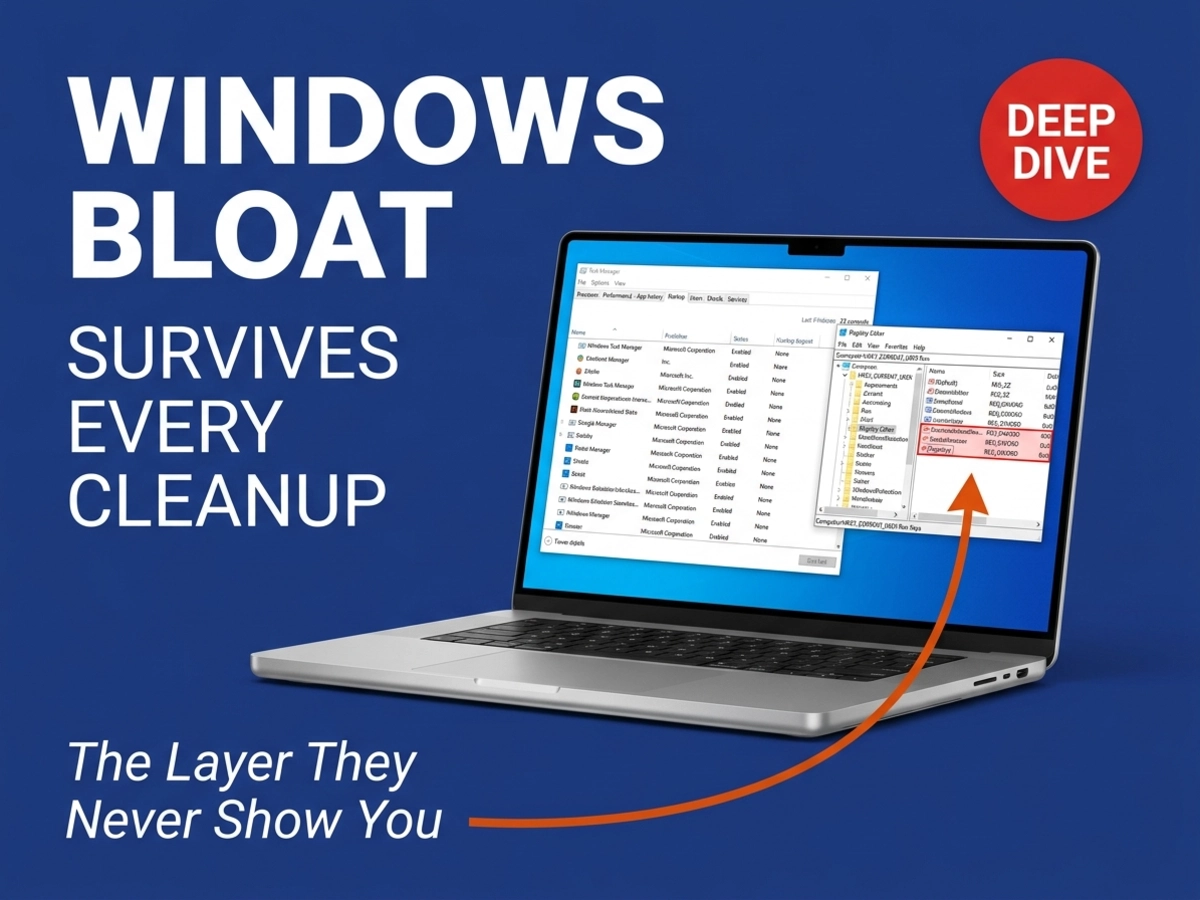
Task Manager's Startup tab and Windows' actual autostart ecosystem are not the same thing — one is a curated list of registered startup programs, the other is a network of over 200 Autostart Extensibility Points that includes scheduled tasks, shell extensions, AppInit DLLs, Winsock providers, and kernel-mode services, none of which Task Manager surfaces.
That distinction has real consequences for anyone trying to diagnose a slow machine. Task Manager's impact ratings — classified by Microsoft's developer documentation as High (more than one second of CPU time or more than 3MB of disk I/O), Medium (300 milliseconds to one second of CPU or 300KB to 3MB of disk I/O), and Low (under 300ms and under 300KB) — apply only to programs that registered themselves through the standard startup path. A program that bypasses that path entirely is invisible to those ratings.
The Sysinternals Autoruns documentation describes more than 200 Autostart Extensibility Points covering registry Run keys, RunOnce keys, Startup folder locations, scheduled tasks, Windows services, kernel-mode drivers, shell extensions, browser helper objects, Winlogon notification DLLs, AppInit DLLs, Winsock Layered Service Providers, media codecs, and more. Task Manager shows the Logon category. The other 19 Autoruns tabs represent categories it never touches.
According to MakeUseOf's technical analysis of Autoruns, a program can completely bypass the standard Run registry key — the one Task Manager watches — by registering a scheduled task set to trigger at logon, or by loading as a shell extension that fires every time File Explorer opens, or by embedding itself as a component that hooks into the network stack as a Layered Service Provider. None of those show up in the Startup tab. A cloud sync service you thought you'd removed months ago may still clock in every morning through a scheduled task. An OEM utility from your laptop manufacturer may be running as a service before your desktop even loads.
Our review of Microsoft's Compatibility Cookbook for Windows desktop startup apps confirms that the impact classification system measures only apps in the startup registration layer — it does not account for scheduled tasks or services running in parallel. The implication is that a system with a "clean" Task Manager Startup tab can still carry dozens of active autostart hooks operating outside that view.
The tool that surfaces the full picture is Autoruns, part of Microsoft's Sysinternals suite. It requires no installation — extract the ZIP file and run the executable as administrator, which is necessary because without elevated privileges certain ASEP locations stay hidden and cannot be modified. Enabling the "Hide Signed Microsoft Entries" option strips out the verified Windows components and Microsoft-signed software, leaving only third-party entries. What remains is often a significantly larger list than Task Manager ever suggested. Yellow-highlighted entries in Autoruns indicate registry references pointing to files that no longer exist — the orphaned remnants of software that was uninstalled without cleaning up after itself.
Microsoft's own developer guidance for this ecosystem is instructive: updater-type programs should run as Maintenance Tasks scheduled at idle time rather than as persistent startup entries. The reason is explicit — startup apps running at login compete for CPU and disk at exactly the moment the system is most resource-constrained.
The gap between "my PC has a few background processes" and "my PC feels unusable" is explained by a mechanism most cleanup guides never mention: the paging threshold. Understanding it changes how you prioritize interventions.
Boot time is the most visible dimension of the problem. A fresh Windows 11 installation on an SSD typically reaches the desktop in 15–25 seconds. Add a dozen startup programs — not unusual on a machine that's been in daily use for a year — and that same hardware reaches 60–90 seconds before the system is fully settled. But boot time is the least consequential part of the equation. The costlier tax runs all day.
Spotify idling in the system tray at 80–150MB, Discord at 100–200MB, and Adobe Creative Cloud helpers at 200–400MB combined may each seem insignificant — but the cumulative math matters: on a system with 8GB of RAM, three or four idle startup apps can consume 1–2GB before a single user application opens. When that RAM pressure pushes the system past the point where active workload memory fits in physical storage, Windows offloads 4KB pages of data to the pagefile on disk. The pagefile is not slow in the way an old hard drive is slow — even on an NVMe SSD, the latency gap between RAM access (nanoseconds) and storage access (microseconds to milliseconds) is large enough to be felt instantly. The paging effect likely explains why users on 8GB systems experience the most dramatic subjective improvements after startup management — the threshold between "using only RAM" and "spilling into the pagefile" is the boundary where performance perception drops sharply.
The specific MB figures cited here are ranges — we have not verified exact values for every app version and system configuration, and actual consumption varies. But the structural mechanism holds regardless of the exact numbers: each idle background process holds a portion of RAM it does not return unless explicitly closed, and the accumulation is gradual enough that users rarely notice when the threshold is crossed.
Microsoft's page file documentation establishes the formal version of this: when the system's commit charge — the total promised memory across all virtual allocations — approaches the commit limit, which equals physical RAM plus pagefile size combined, the system can no longer fulfill memory allocation requests. The result is not a graceful slowdown but freezing, crashes, and application failures.
Windows 11 adds a newer dimension to this that previous guidance did not anticipate. The Widgets board, running through msedgewebview2.exe, and the background AI services Microsoft has integrated into Windows 11 consume between 200MB and 600MB of RAM while actively polling the network. This is Microsoft-origin load, not third-party accumulation — and it arrives on every Windows 11 installation before you've added a single application. For IT administrators and power users keeping pace with what Windows 11 is adding to that footprint, the Q1 2026 update cycle introduced several enterprise-level additions — including native Sysmon integration and an overhauled MIDI stack — each with its own deployment conditions and resource considerations worth understanding before enabling. On machines with abundant RAM, the base Widgets and AI load is a minor tax. On 8GB systems, it meaningfully shifts the starting position before the user's own software enters the equation.
Disabling high-impact startup apps frees 500MB to 1GB of RAM on Windows 11, depending on what's running. On a constrained system, that recovery can be the difference between staying below the paging threshold throughout a normal workday and spending hours in a state where every application response waits for disk I/O.
Restoring performance on a cluttered Windows machine is a sequenced problem. Each layer addressed makes the next layer more meaningful.
Open Autoruns as administrator and let it complete its scan. Enable "Hide Signed Microsoft Entries" to isolate third-party content. Work through the Logon tab first — this is the territory Task Manager covers, and starting here confirms whether standard cleanup has already addressed the visible layer. Then move to the Scheduled Tasks tab, which surfaces apps configured to trigger at logon that never appear in Task Manager. Cloud sync services, update managers, and remnants of long-uninstalled software commonly appear here. The Services tab exposes Windows services set to launch automatically; the Drivers tab shows kernel-mode drivers loaded before the desktop. Any entry highlighted yellow indicates a registry reference with no corresponding file — a safe candidate for cleanup that reveals previous software removals left the system in an inconsistent state.
Microsoft's developer guidance for this space is worth applying directly: software that exists to check for updates should not run as a persistent startup program. It should run as a Maintenance Task, scheduled to execute during idle time when it does not compete with active workload. Many commercial applications ignore this guidance by default, which is why the audit is necessary.
Windows distinguishes between two fundamentally different storage maintenance operations. Hard drives need defragmentation — the physical reorganization of file data so the mechanical read head travels less. Solid-state drives need TRIM, which tells the drive which data blocks the operating system has marked as available, allowing the drive's internal garbage collection to clean those blocks during idle periods. Windows' Optimize Drives utility identifies your drive type and applies the correct operation automatically. Running defragmentation software against an SSD does not improve performance and accumulates unnecessary write cycles against the drive's finite write endurance.
We recommend verifying TRIM status directly rather than assuming it runs correctly — on some configurations, scheduled optimization tasks can be interrupted. Opening Optimize Drives and confirming that the last optimization date is recent is the simplest check. Windows runs drive optimization on a weekly schedule by default, but the schedule is configurable and can be disabled by third-party utilities that install their own disk management layers.
Microsoft's guidance for SSD performance includes maintaining at least 15–20% free space on the primary drive. Below that threshold, SSD wear leveling and garbage collection operate under reduced margin, which can degrade write performance over time.
The two hardware interventions that deliver the clearest performance improvement for general responsiveness are storage upgrades (moving from a hard drive to an SSD) and memory expansion. If the machine already has an SSD, the storage upgrade question doesn't apply. The RAM question is directly connected to the paging analysis above: if comprehensive startup management and background service reduction still leave the system regularly spilling into the pagefile under normal working conditions, that's the signal that additional physical memory will produce a noticeable difference. If paging occurs only under peak load, more RAM trades money for marginal comfort.
CPU and GPU upgrades improve absolute compute throughput and are worth considering for workloads that specifically tax those components — video rendering, heavy computation, demanding gaming. For general desktop responsiveness, clearing the software process ceiling addresses the actual bottleneck in most cases. Hardware raises the floor; software maintenance reclaims the distance between that floor and where a neglected machine currently operates.
Registry cleaning is one of the first recommendations that appears when someone searches for ways to speed up a slow Windows PC. Free tools for it are widely available, their interfaces are designed to convey urgency, and their marketing promises are confident. The technical case for them is not.
Microsoft does not support registry-cleaning utilities and has warned that serious problems can result when these tools modify registry entries incorrectly. The registry is a live database that Windows reads continuously during operation — it is not designed for routine third-party access or editing. The myth of registry cleaning as a performance intervention traces to the Windows 98 and Millennium Edition era, when Microsoft shipped a Registry Checker tool (scanreg.exe) as a genuine maintenance utility for a registry architecture that benefited from periodic cleanup. Modern Windows uses indexed registry lookups, not sequential scans — orphaned entries from uninstalled software impose almost no overhead on a system that is not performing exhaustive registry traversal.
The security dimension compounds the caution. In 2017, attackers embedded a backdoor in a legitimate, signed CCleaner update that users installed through normal channels. The compromise required no unusual user behavior to take effect. Even well-established tools in this space carry structural risk when they operate with deep system access.
We have not found a single controlled benchmark in the literature showing measurable boot time improvement from registry cleaning on Windows 10 or 11. The actual causes of Windows slowdown — accumulated startup programs, background services, exhausted disk space, and malware — are each addressable through tools Windows ships with. Disk Cleanup and Storage Sense handle junk files. Task Manager, Autoruns, and Services.msc handle the process and service layer. Windows Security handles malware scanning. None of these requires a third-party registry tool.
Registry cleaning occupies an unusual position in Windows maintenance advice: it is simultaneously one of the most frequently recommended interventions and one that experts — including Sysinternals' founder Mark Russinovich and Microsoft's own advisory documentation — say delivers no measurable performance improvement. Russinovich stated that even a massively bloated registry has negligible effect on anything beyond exhaustive full-registry searches, and that he declined to build a registry cleaner because the practical value simply isn't there. The persistence of registry cleaning as advice is a commercial artifact — these tools generate revenue, which sustains their marketing presence — not a reflection of technical merit.
Long-term Windows performance is not primarily a hardware question. A well-maintained machine on mid-range hardware will outperform a neglected machine on premium hardware in everyday responsiveness, because the binding constraint in most cases is the background process count, not raw compute capacity.
The practical maintenance framework, ordered by impact:
Start with the autostart audit using Autoruns. Task Manager's Startup tab is the beginning of the process, not the whole of it. The scheduled tasks, services, and shell extensions that bypass it are where significant hidden load accumulates. A thorough Autoruns audit, done once and then repeated quarterly, keeps that layer from re-accumulating.
Confirm drive optimization matches your drive type. Optimize Drives handles this correctly by default, but verifying it periodically — particularly after installing new software that may have modified the maintenance schedule — takes two minutes.
Evaluate RAM only after the software baseline is clean. If paging still occurs regularly after startup management, more physical memory will produce a measurable difference. If it doesn't occur, additional RAM adds headroom for peak workload rather than solving an active bottleneck.
The hardware upgrade decision belongs after this process, not before it. On machines that have never had a comprehensive software audit, the expected improvement from new hardware is frequently smaller than users anticipate, because the background process ceiling limits how much of that new capacity reaches the workload. Clear the process ceiling first, then reassess.
For most modern Windows users, a full reinstall delivers less improvement than a comprehensive software audit — and costs significantly more time. The performance gains from reinstalling are most pronounced when a system is dealing with accumulated startup apps, persistent background services, or software that has embedded itself deeply enough that standard uninstallation doesn't fully remove it. On modern hardware with NVMe storage, file system fragmentation and registry growth — the problems reinstalls historically solved best — are no longer significant bottlenecks.
The clearest signal that a reinstall makes sense is when Autoruns reveals a large number of entries you cannot identify and cannot safely disable through normal tools, or when malware removal has been necessary and you cannot verify the system's integrity. For performance alone, Autoruns-based cleanup and background service management recover most of what a reinstall would provide without the time cost and data migration risk.
A quarterly review is a practical cadence for most users. Software installation is the primary driver of startup creep — each new application potentially adds its own startup hooks, update checkers, and background services. Reviewing startup entries every three months, using both Task Manager and Autoruns, catches accumulation before it reaches the point where subjective performance changes are noticeable.
The trigger for an immediate audit is any significant change to the software environment: a major software installation, a Windows feature update, or after removing an application that ran background services. Major Windows feature updates sometimes reintroduce default Microsoft apps that had been removed, and OEM recovery procedures can restore manufacturer-installed software. After either event, checking Autoruns' Scheduled Tasks tab specifically is worthwhile — that's where reinstated apps most commonly reestablish their foothold outside the visible startup list.
Windows 11 ships with a layer of Microsoft-origin background load that is distinct from OEM bloatware or third-party accumulation — and that predates any user-installed software. The Widgets board and background AI services together consume between 200MB and 600MB of RAM while continuously polling the network. This is present on every Windows 11 installation, regardless of what additional software the user has or hasn't added.
Disabling the Widgets board and the AI background services releases that memory directly to active foreground applications. These are configurable through Settings and do not require third-party tools. The performance impact is most meaningful on systems with 8GB of RAM or less, where that 200–600MB represents a material share of available physical memory. On systems with 16GB or more, the impact is modest but still measurable as a reduction in background network activity and idle CPU load.
Adding RAM raises the ceiling at which paging begins — which is the right solution if the root cause is that the workload genuinely requires more memory than the system has. But if the system is paging because background processes are consuming RAM that the active workload should have access to, more RAM gives those processes more room to run without necessarily improving responsiveness for the user's actual applications.
Microsoft's page file documentation explains the relationship precisely: paging begins when the system's total committed memory — across all virtual allocations from all processes — approaches the combined limit of physical RAM and pagefile size. Reducing the committed load through startup and service management is the targeted intervention. Adding RAM expands the ceiling. Both are valid, but they address different aspects of the same constraint. On a system that hasn't had a software audit, reducing the committed load through startup management often produces more immediate improvement than a RAM upgrade, because it removes the processes competing for the RAM that already exists.